Azure

Cloud Asset Inventory

Tutorials

Inventory Microsoft Azure with CloudQuery

You can now get a view of all your cloud assets across Microsoft Azure and other cloud platforms using the CloudQuery Multi-cloud Asset Inventory Report.

[Originally posted at https://www.returngis.net/2021/11/haz-inventario-de-microsoft-azure-con-cloudquery/]

I have recently discovered a tool that in different scenarios, especially in the inventory, can be useful to us. It's called CloudQuery and it allows you to export the data of the resources of your subscriptions, from the different cloud providers, to be able to execute queries on it by launching SQL statements, since the result is stored in PostgreSQL. In this article I tell you how to configure it for Microsoft Azure. You can use the CloudQuery Microsoft Azure source integration for this.

Install CloudQuery

The first thing you need to do is install the CloudQuery tool on your machine. In my case I am using macOS, so I have run the following command using Homebrew:

brew install cloudquery/tap/cloudquery

If you use another operating system you can see the different releases here.

Start CloudQuery

Now that you have the CloudQuery tool installed on your machine, create a directory, I have called it CloudQuery, and initialize the configuration within it, with the following command:

cloudquery init azure

By doing this, it generates a file called config.hcl which we can customize, indicating which subscriptions we want to bring the data from, what types of resources, and so on.
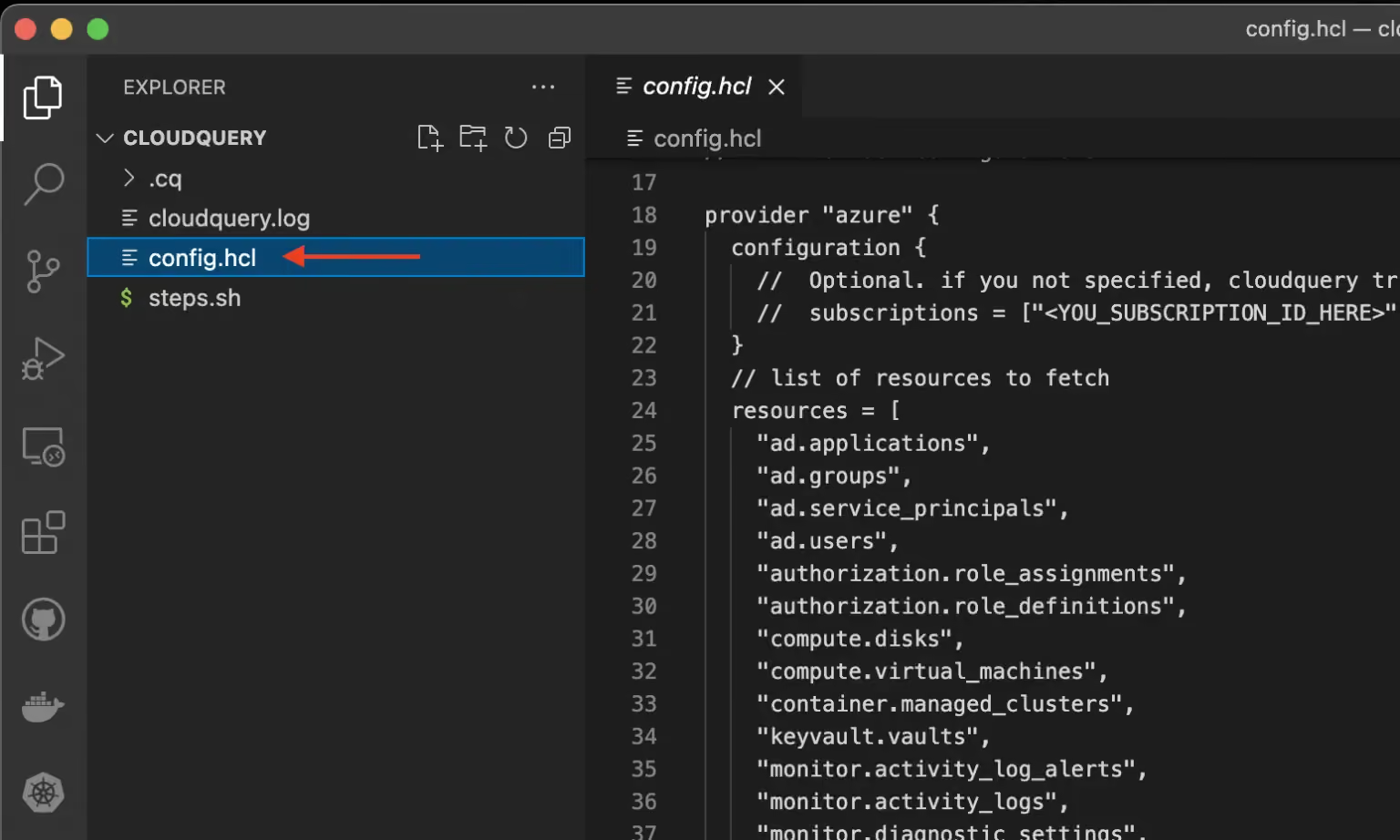
CloudQuery init generates the config file

If we do not modify anything, all the resources of all the subscriptions to which they have access will be brought. Now we have our project ready to retrieve the information of our subscriptions.

Create a PostgreSQL database in Docker

As I already mentioned at the beginning of this article, the information retrieved is exported to a PostgreSQL-type database , so we will need one. The simple way is using a Docker container:

#Create a database in Docker
docker run -d --name postgresdb \
-p 5432:5432 \
-e POSTGRES_PASSWORD=pass \
postgres

Create a Service Principal

Now that we know that we want to retrieve the information from Azure, in order to do so we need to create a main service that has access to the subscriptions we want to export:

SUBSCRIPTION_ID=
az account set --subscription $SUBSCRIPTION_ID

#Need to register Microsoft.Security
az provider register --namespace 'Microsoft.Security'

#Create a service principal
az ad sp create-for-rbac --name cloudquery --scopes /subscriptions/$SUBSCRIPTION_ID > auth.json

Once the response is created, and stored in the auth.json file , I use the jq tool to store the main service information in these environment variables:

#Set variables
export AZURE_TENANT_ID=$(jq -r '.tenant' auth.json)
export AZURE_CLIENT_ID=$(jq -r '.appId' auth.json)
export AZURE_CLIENT_SECRET=$(jq -r '.password' auth.json)
export AZURE_SUBSCRIPTION_ID=$(az account show --query id -o tsv)

Assign the primary service to the Azure AD "Application Administrator" role

To finish the configuration, we need the main service that we just created to be associated with an Azure Active Directory role called Application administrator, which you can find in the Azure AD resource, in the Roles and administrators section:
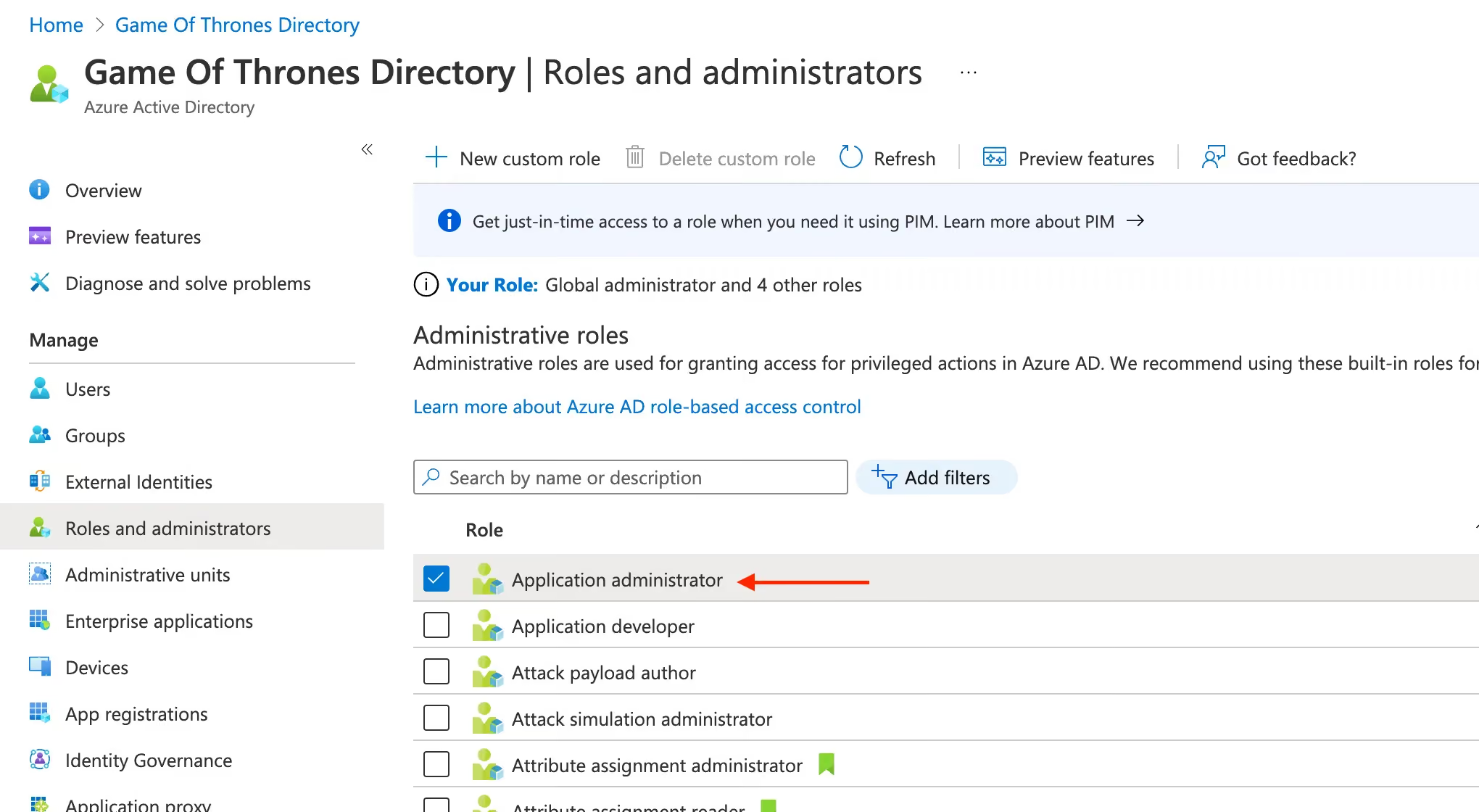
Azure AD - Roles and administrators - Application Administrator

Once in it, look for the main service that we have called CloudQuery, through the Add assignments button, and associate it permanently.
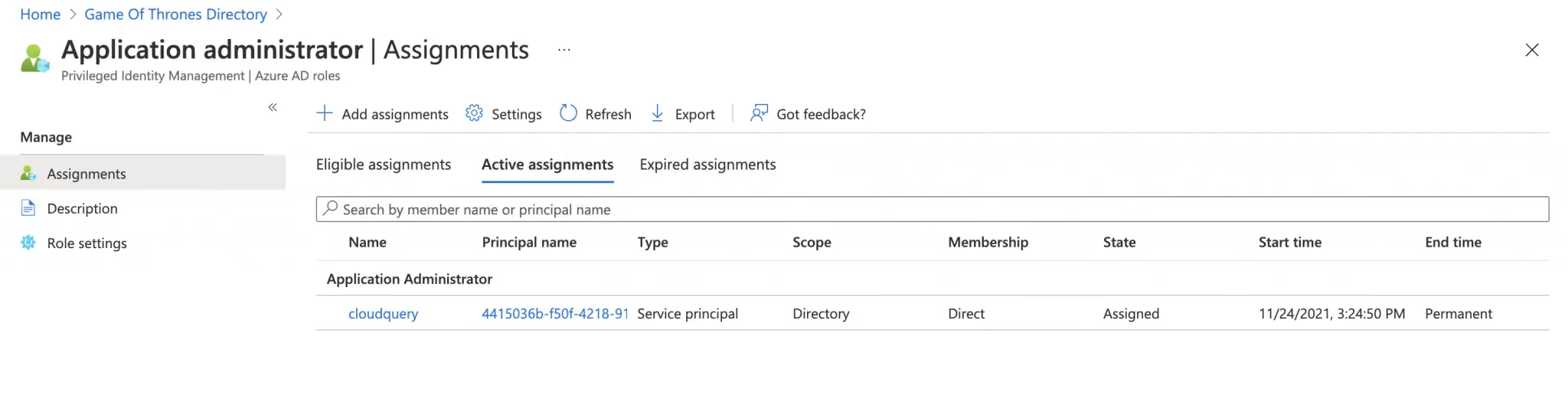
Add the main service to the Application Administrator role

Dump the information in PostgreSQL with CloudQuery

Now the only thing left is to retrieve the information with CloudQuery. To do this, you only have to execute a single command:

#Fetch the information into the database
cloudquery fetch --dsn "postgres://postgres:pass@localhost:5432/postgres?sslmode=disable"

This uses the environment variables that we have previously configured, with the information of our main service, and the PostgreSQL database that we have generated in Docker. Once the process finishes, you will see that you have a bunch of generated tables (for this example I have used DataGrip as GUI):

92 CloudQuery generated tables in Postgres

You can make queries like these, simply to retrieve resources of a specific type:

SELECT * from azure_compute_virtual_machines;

SELECT * from azure_web_apps;

Or go further and consult about these aspects that may be important to you and you need to validate or generate a report on them. For example: "Tell me which storage accounts have public access enabled." It would be something as simple as this:

SELECT * from azure_storage_accounts where allow_blob_public_access is null

Greetings!

Want to see CloudQuery in action? Schedule a demo with our team or check out the platform documentation to learn more.

Want help getting started? Join the CloudQuery community to connect with other users and experts, or message our team directly here if you have any questions.

Try CloudQuery yourself

Self-hosted, open source, and free to start. Or schedule a demo to see the managed version.

Related posts

Azure

Cloud Asset Inventory

Tutorials

How to build a Cloud Asset Inventory for Azure

Learn how to build an Azure cloud asset inventory with CloudQuery and PostgreSQL. Covers setup, dbt transformations, and visualizing assets for security and compliance.

Joe Karlsson

Joe Karlsson

November 25, 2024

AWS

Azure

Cloud Asset Inventory

GCP

Tutorials

How to Build a Multi-Cloud Asset Inventory

Build a multi-cloud asset inventory across AWS, GCP, and Azure with this step-by-step guide covering data collection, transformation, and storage.

Joe Karlsson

Joe Karlsson

August 29, 2024

AWS

Azure

GCP

Security

Tutorials

How to Find Internet-Facing Cloud Assets in AWS, Azure and GCP

Find all internet-facing cloud resources across AWS, Azure, and GCP. Identify exposed VMs, storage, databases, and load balancers to reduce attack surface.

Adam Cobb

Adam Cobb

November 5, 2025

Azure

Tutorials

Azure Quick Wins

Quick CloudQuery wins for Azure: find misconfigurations, unused resources, and security gaps in your Azure environment with ready-to-run SQL queries.

Chris Reuter

Chris Reuter

September 12, 2025

Cloud Asset Inventory

Tutorials

The True Cost of Poor Tagging in Cloud Environments (and How to Fix it)

Poor cloud tagging causes wasted spend, security risks, and compliance failures. Learn the true cost of bad tagging and how to regain control with CloudQuery.

Cyril Allard

Cyril Allard

Joe Karlsson

Joe Karlsson

March 13, 2025

AWS

Cloud Asset Inventory

Tutorials

Building an AWS Cloud Asset Inventory

Build an AWS cloud asset inventory with CloudQuery and PostgreSQL. Covers setup, dbt data transformations, and building Grafana dashboards for cloud visibility.

Joe Karlsson

Joe Karlsson

March 12, 2025

Azure

Security

Tutorials

How to Find Azure Resources Affected by TLS 1.0/1.1 Deprecation

Identify Azure resources impacted by TLS 1.0 and 1.1 deprecation using CloudQuery. Audit your cloud assets and ensure TLS compliance using SQL queries.

Ben Bernays

Ben Bernays

January 29, 2025

Azure

Security

Tutorials

Enhance your Cloud Asset Inventory Using Wiz + Azure

Enhance your Azure cloud asset inventory with CloudQuery’s Wiz plugin. Gain immediate insights into vulnerabilities and misconfigurations.

Kevin Rheinheimer

Kevin Rheinheimer

July 2, 2024

Cloud Asset Inventory

GCP

Tutorials

Step-by-Step Guide to Building a Cloud Asset Inventory for GCP

Learn how to build a GCP cloud asset inventory with CloudQuery, PostgreSQL, and dbt. Covers setup, data transformation with dbt models, and querying cloud resources.

Joe Karlsson

Joe Karlsson

June 13, 2024

Own your pipeline.
Own your data.